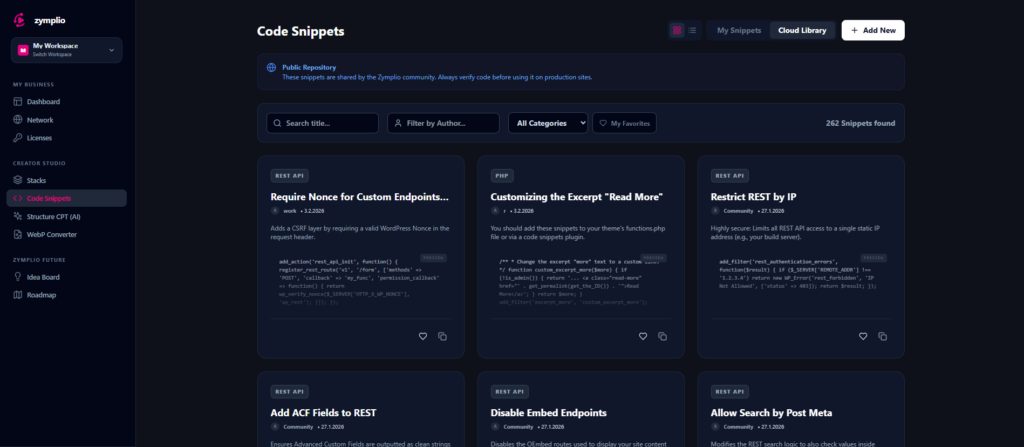
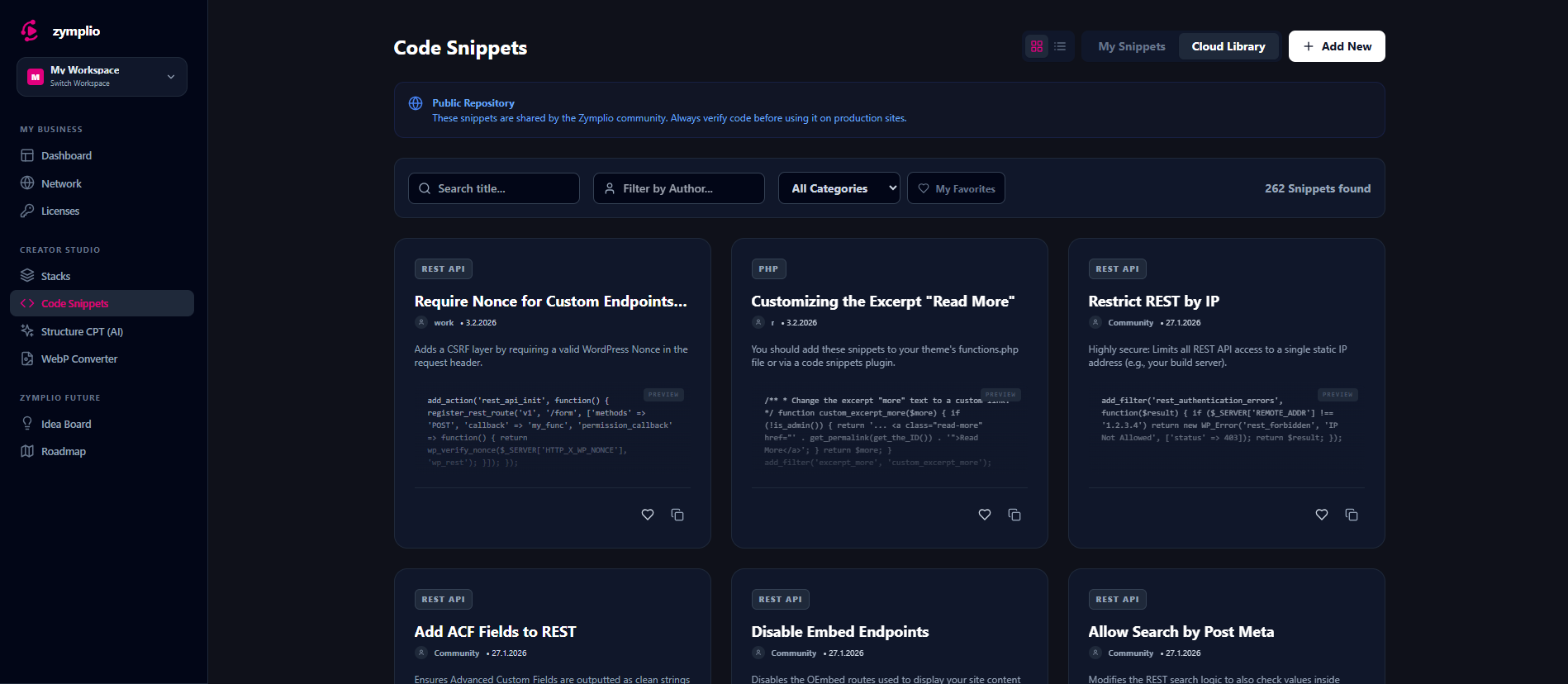
Stop writing the same CSS, PHP, or JavaScript over and over again. Code Snippets in zymplio allow you to store your most useful code in one central place and push it to any WordPress site in your network with a single click.
1. My Snippets vs. Cloud Library
- My Snippets: This is your private vault. Save your own custom solutions here. They are only visible to you and your team.
- Cloud Library: Explore a world of community-driven code. You can browse snippets shared by other experts, “fork” (duplicate) them into your own library, and adapt them to your needs.
2. Smart Organization
- Categories: Keep your library clean by organizing snippets into categories like WooCommerce, Header/Footer, Performance, or Security.
- Favorites: Mark your most-used snippets as favorites so you can find them instantly when you are building a new project.
3. Real-Time Deployment
The true power of zymplio Snippets is the Bridge Integration:
- Assign to Sites: Link a snippet to a specific website in your Network Hub.
- Assign to Stacks: Include snippets in your “Golden Stacks” to deploy them automatically with your favorite plugins.
- Instant Updates: When you edit a snippet in zymplio, the changes are ready to be synced to all assigned sites. No more logging into 20 different WordPress dashboards to change one line of CSS!
How to use Snippets effectively
- Save it once: Whenever you solve a problem with code, save it as a snippet in zymplio.
- Describe it: Give your snippet a clear title and description. Future-you will thank you when you’re looking for that “WooCommerce Cart Filter” six months from now.
- Deploy via Bridge: Ensure the zymplio Bridge plugin is active on your site. Once assigned, your code will be active on the site without you ever touching the functions.php file.